Remapping Logitech Mouse Buttons with Solaar
I use a Logitech MX Master 3S, which has extra programmable buttons. When I was on KDE, remapping them was straightforward: system settings has a dedicated section for mouse configuration that lets you assign actions to extra buttons directly.
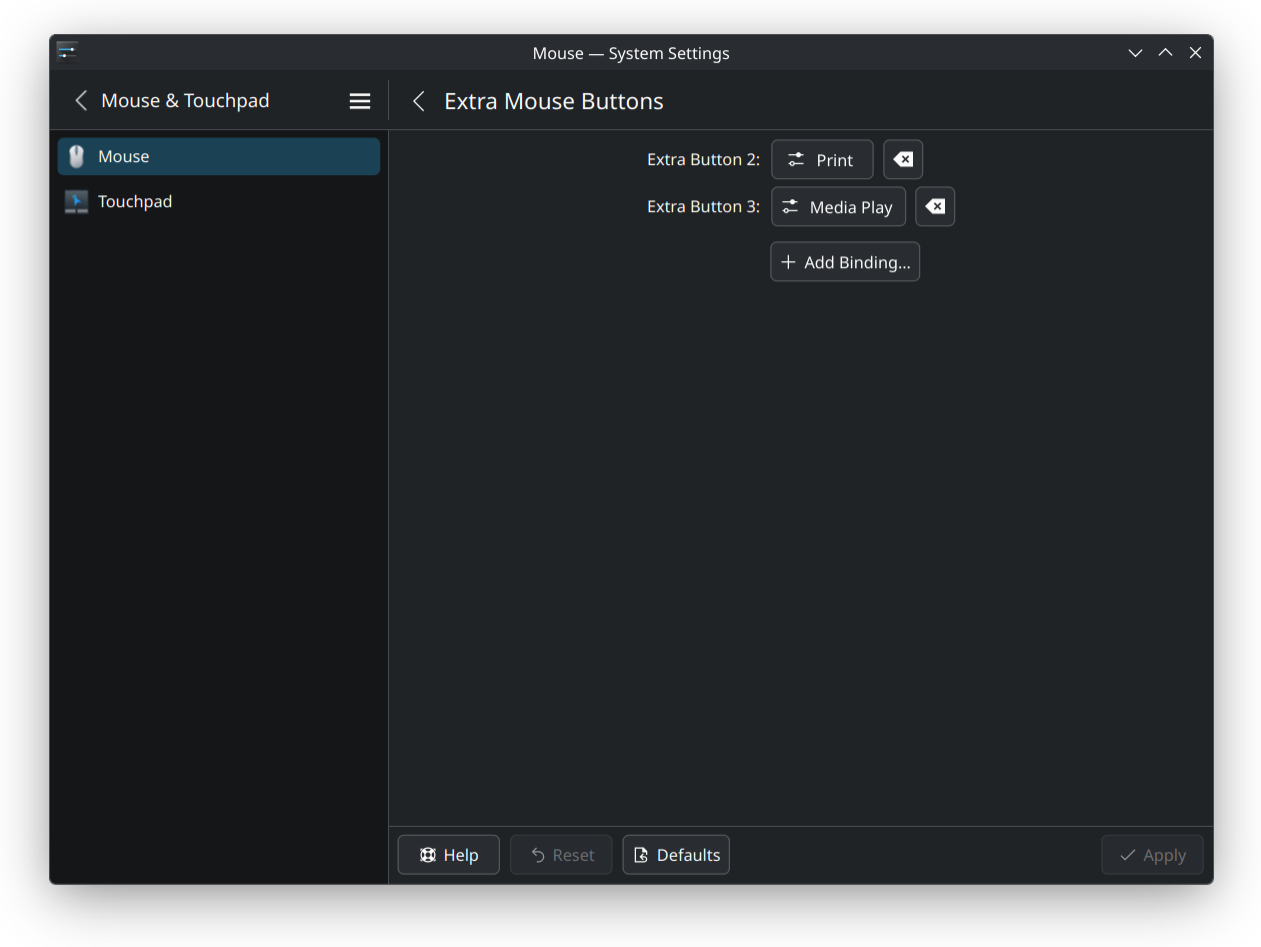
After moving to GNOME, that option was no longer there. I started looking for alternatives, but then I realized the answer was already installed on my machine: Solaar.
Solaar
Solaar is the Linux device manager for Logitech devices that use the Unifying or Bolt receivers. I had been using it just to monitor battery levels, but it also ships with a full rules editor that can intercept events and trigger actions.
Step 1: Divert the Buttons
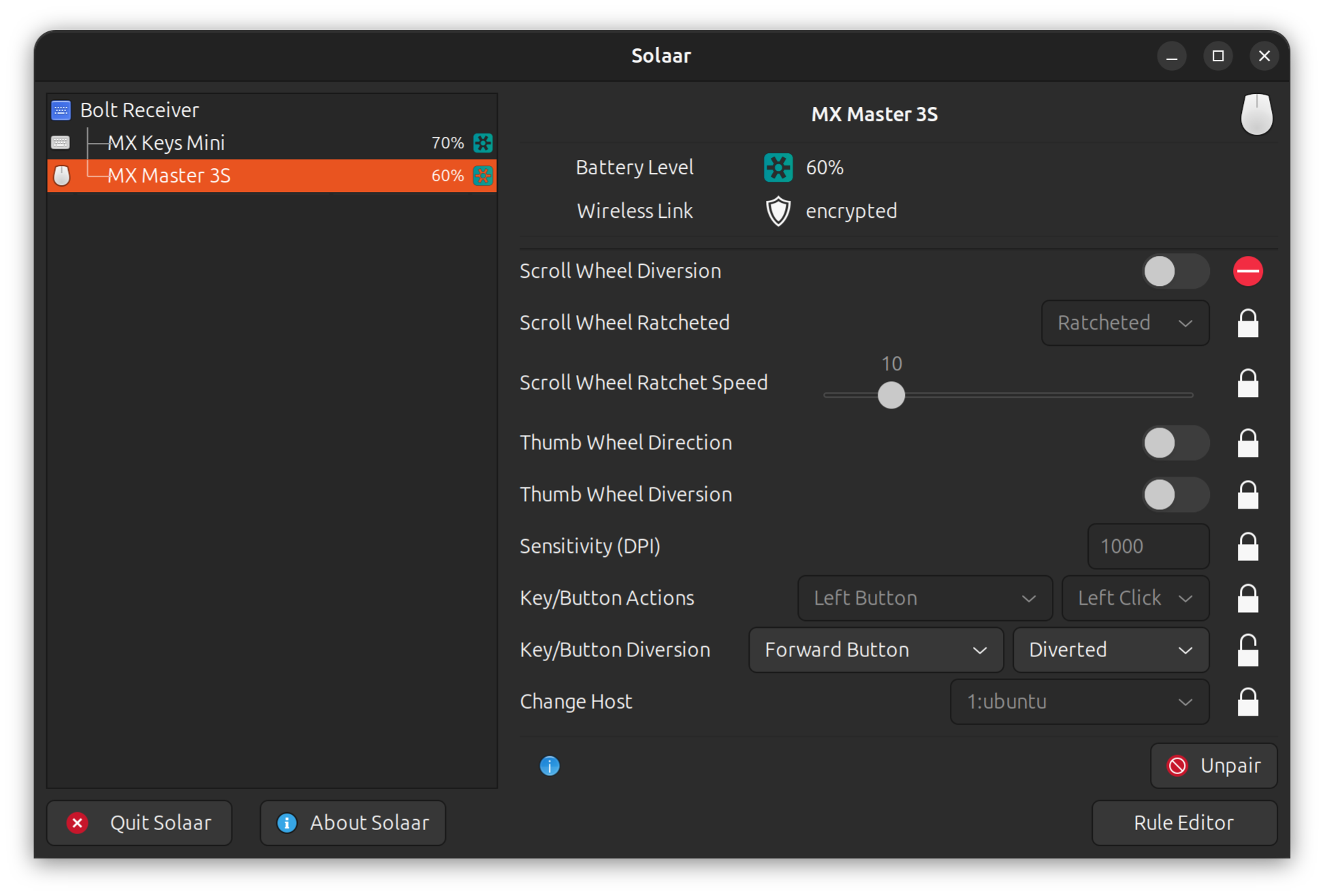
Before the Rules Editor can intercept a button, Solaar needs to take ownership of it. By default, extra buttons send their events directly to the OS. Diverting a button tells the device to route it through Solaar instead.
In Solaar, select your device and go to the Key/Button Diversion section. I set both Forward Button and Mouse Gesture Button to Diverted.
Step 2: Create the Rules
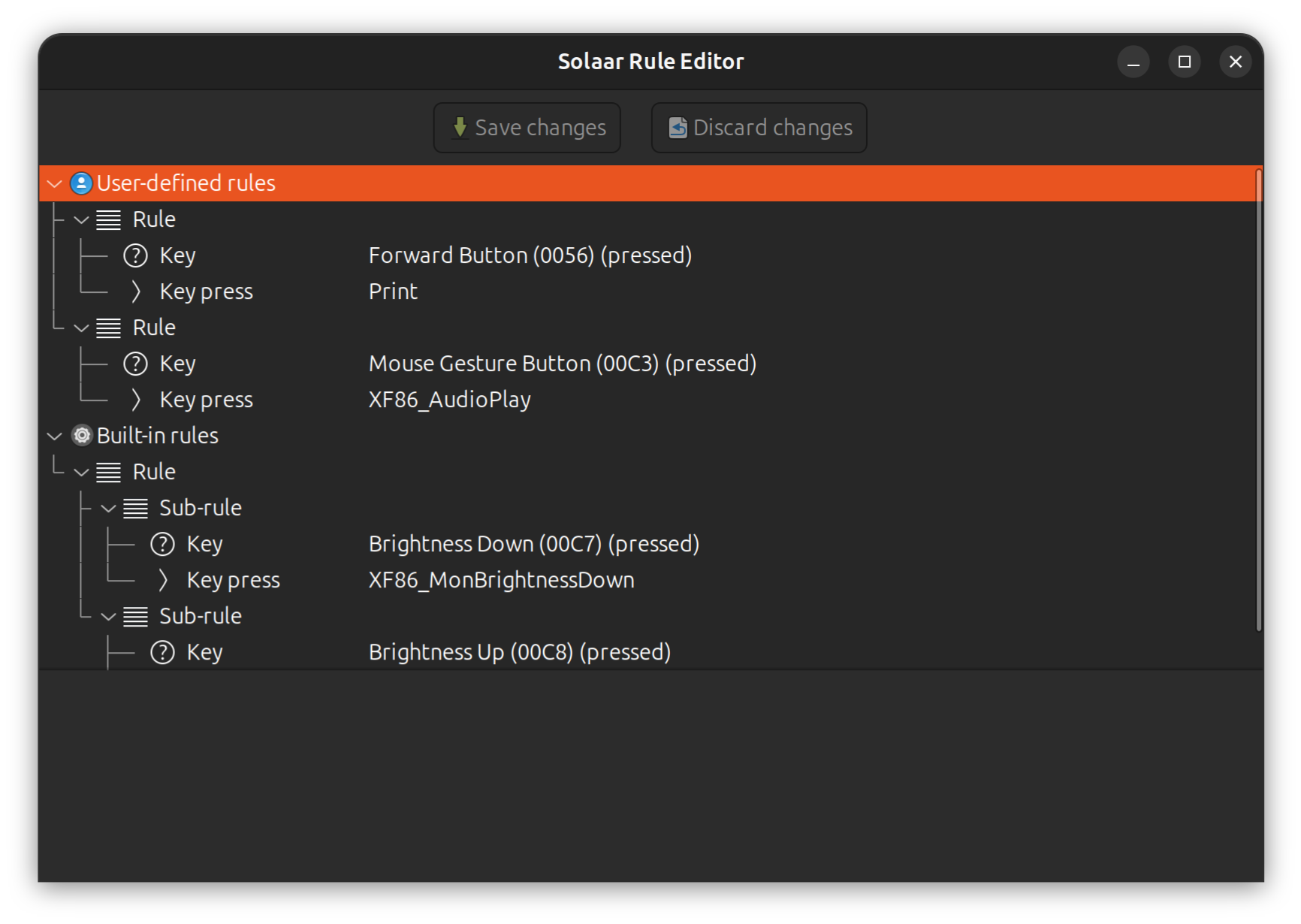
Click the Rule Editor button on the bottom-right corner. Insert one rule per button, each with a key condition and a key press action.
Forward Button -> Screenshot
I remapped the Forward Button to Print to trigger GNOME's screenshot tool.
- Right-click
User-defined rulesand clickInsert new rule. - Insert a
Condition:Key,Forward Button. - Insert an
Action:Key press,Print. - Save changes.
Mouse Gesture Button -> Play/Pause
I remapped the Mouse Gesture Button (hidden button below the thumb) to XF86_AudioPlay, the standard media play/pause key.
- Right-click
User-defined rulesand clickInsert new rule. - Insert a
Condition:Key,Mouse Gesture Button. - Insert an
Action:Key press,XF86_AudioPlay. - Save changes.
Config
For reference, the rules are saved to ~/.config/solaar/rules.yaml:
%YAML 1.3
---
- Key: [Forward Button, pressed]
- KeyPress:
    - Print
    - click
---
- Key: [Mouse Gesture Button, pressed]
- KeyPress:
    - XF86_AudioPlay
    - click
Mouse Gestures
Instead of setting the Mouse Gesture Button to Diverted, you can set it to Mouse Gestures in the Key/Button Diversion dropdown. This mode lets you hold the button and move the mouse in a direction, which triggers an action. This is useful if you want multiple actions from one button.
In the Rule Editor, use Mouse Gesture as the condition type instead of Key, then pick the direction you want to trigger the action:
- Right-click
User-defined rulesand clickInsert new rule. - Insert a
Condition:Mouse Gesture,Mouse Right. - Insert an
Action:Key press,Control_L+Alt_L+Right. - Save changes.